How to use Auric 101
Everything Auric 101 can do, screen by screen: setting it up, logging money, bills, goals, reports, backups and moving to a new device. Keep this page open next to Auric, or save it as a PDF.
solveify101.com/help/auric-101/
1. Open Auric
Auric 101 is a single file that ends in .html. It opens in your web browser and works without the internet. There's nothing to install and no account to create.
- On a computer: double-click the file. It opens in Chrome, Edge, Firefox or Safari.
- On Android: open the file with Chrome.
- On iPhone and iPad: use the free Microsoft Edge app. Safari and Chrome on iPhone and iPad can't run it. See the steps for iPhone and iPad.
Important: Auric saves everything in the browser you open it with, on that device. Always open the same file in the same browser, and don't use a private or incognito window: it forgets your entries when it closes.
2. Your PIN
Auric asks for a 4-digit PIN every time you open it. The starting PIN is 1234.
- Type 1 2 3 4 on the keypad (or with your keyboard).
- Set your own PIN straight away: go to Setup › PIN, enter the current PIN, then your new PIN twice, and click Update PIN.
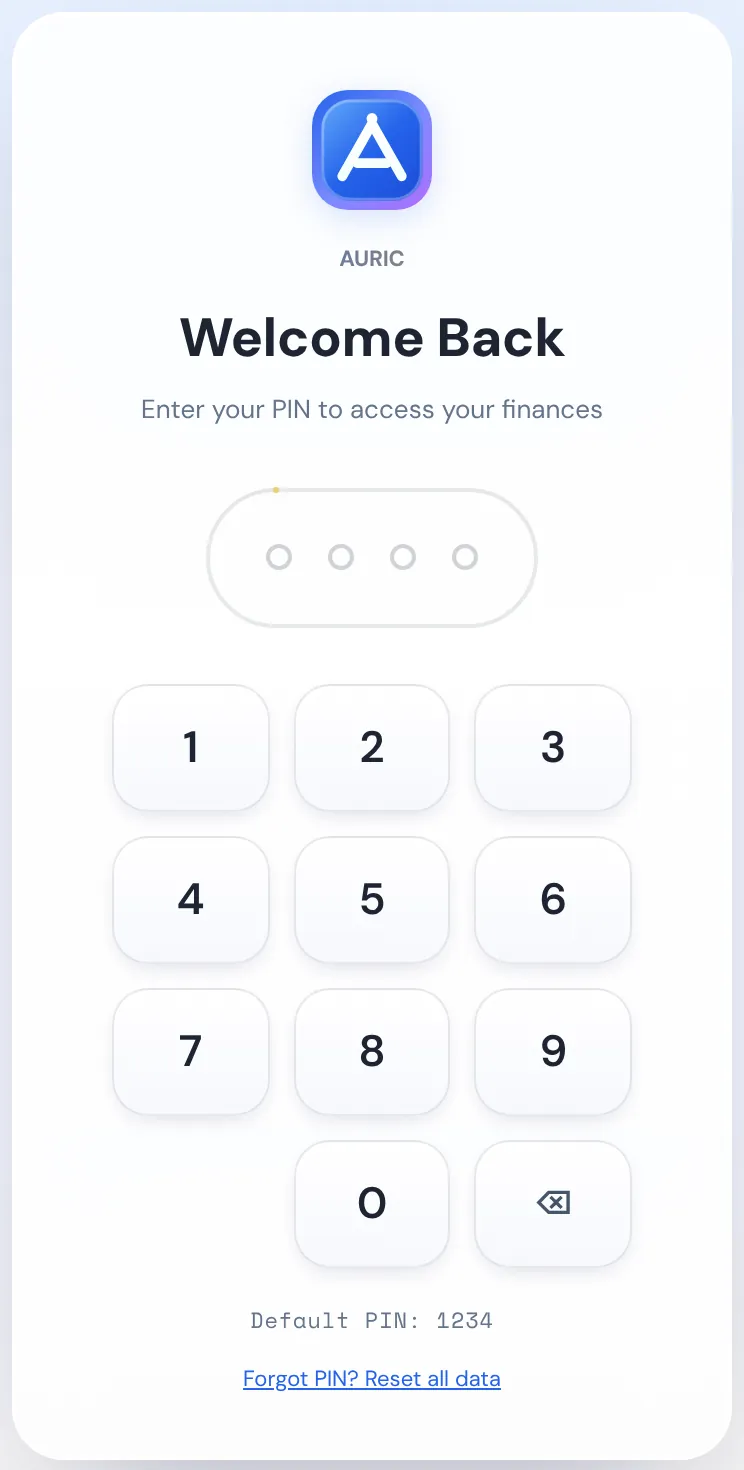
Important: There's no way to recover a forgotten PIN. Forgot PIN? Reset all data on this screen deletes everything in Auric and starts again. Keep a backup (section 19) so you can restore your data if that ever happens.
3. First-time setup
The first time you open Auric, a short setup appears. It takes about a minute, and you can change everything later in Setup.
- Welcome: click Get Started.
- Choose your currency: pick the currency you use most, then Continue. There are 36 to choose from.
- Add your first account: choose its type (cash, debit, credit, savings or investment), give it a name like "Wallet" or "Main bank", and type its current balance if you know it. Click Almost Done.
- You're all set: check the summary and click Start Tracking.
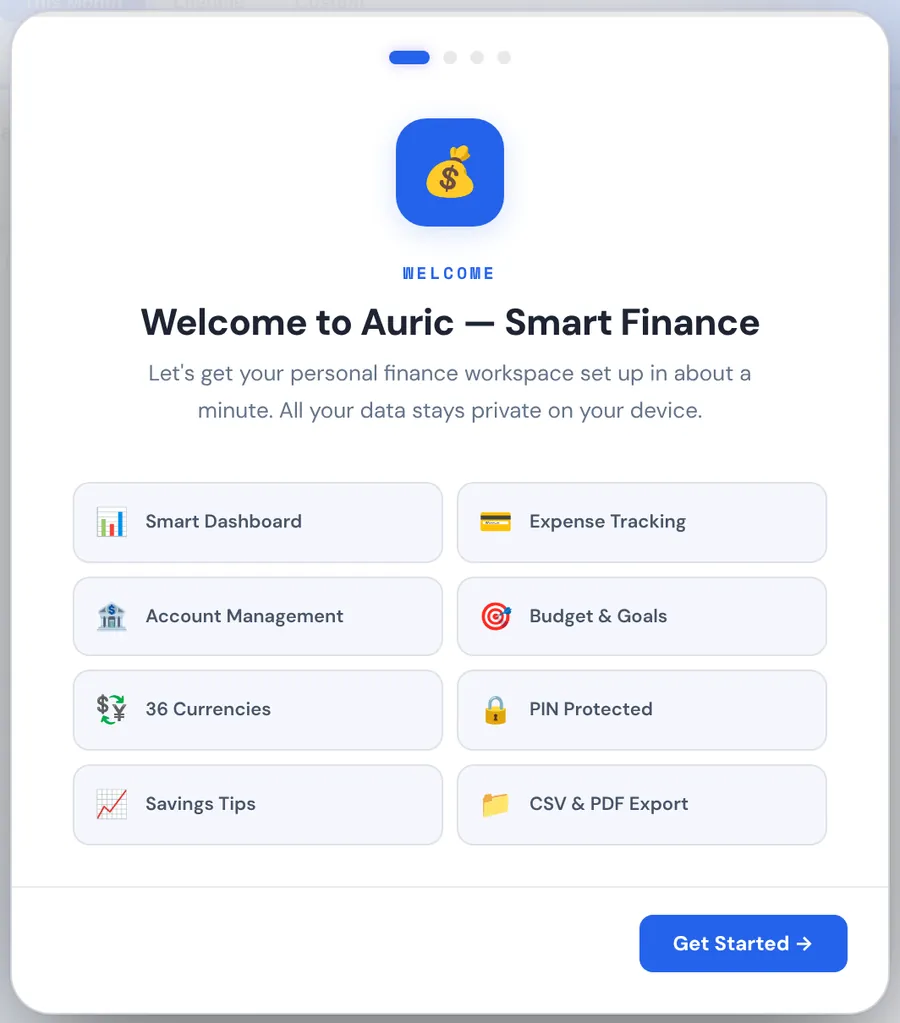
You can click Skip on the currency and account steps and set them up later.
4. Find your way around
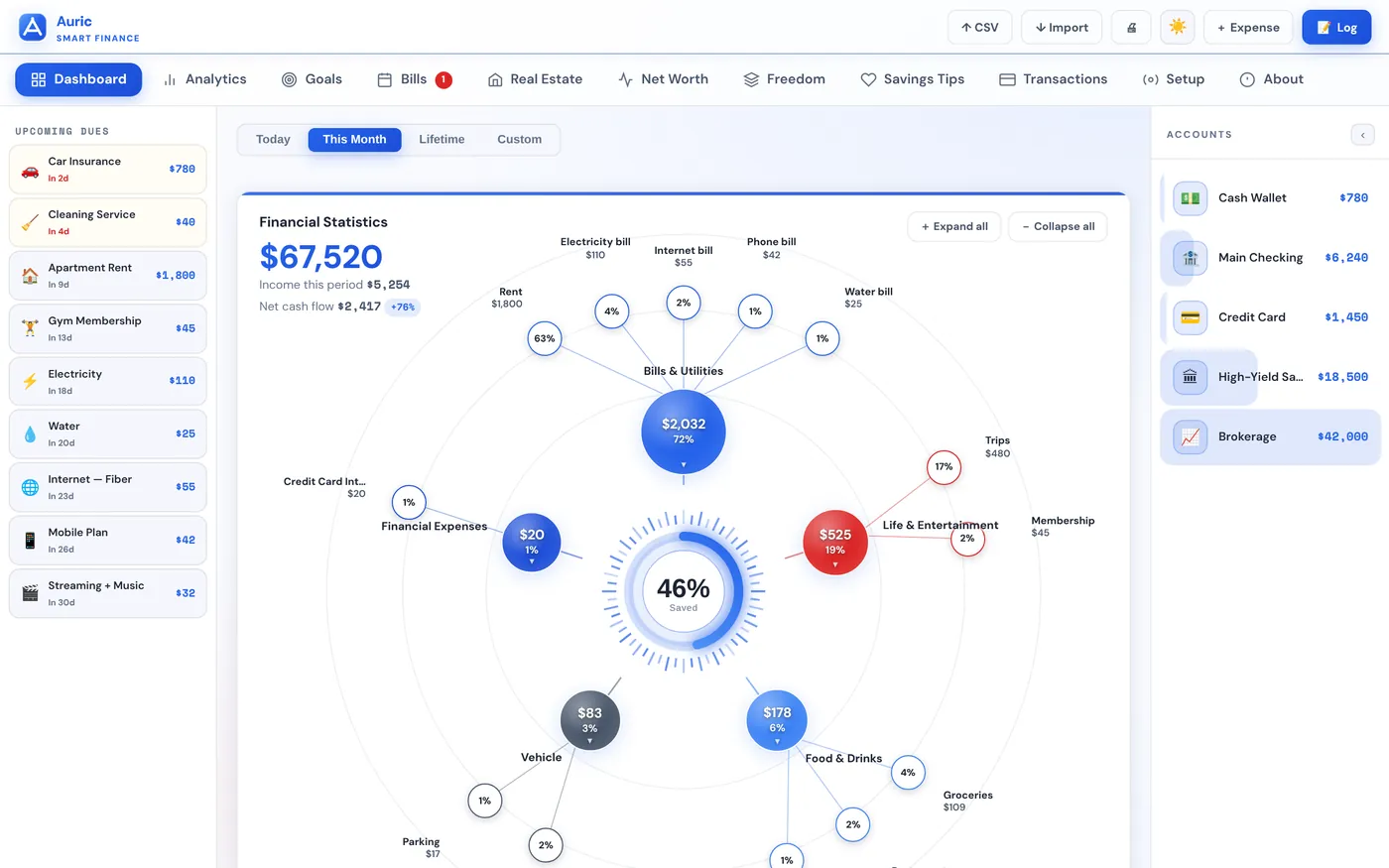
The buttons at the top
- ↑ CSV saves all your transactions as a spreadsheet file.
- ↓ Import brings transactions in from a spreadsheet (section 18).
- 🖨 opens this month's report, ready to print or save as a PDF.
- The sun or moon switches between light and dark mode.
- + Expense is the quickest way to add a transaction or pay a bill.
- Log opens the full form for adding transactions.
The tabs
Dashboard, Analytics, Goals, Bills, Real Estate, Net Worth, Freedom, Savings Tips, Transactions, Setup and About. Each one has its own section below. The red number on Bills counts bills that are overdue.
The side panels
- Upcoming dues (left) lists the bills and property payments due in the next 30 days. Overdue ones are in red, and the total for the next 30 days is at the bottom.
- Accounts (right) shows each account's balance and your total. Click ‹ to fold the panel away.
5. Set up your accounts
An account is anywhere your money sits: your wallet, a bank account, a credit card, savings or investments. You can have up to 10. Every transaction comes out of, or goes into, one of them, and Auric keeps each balance up to date.
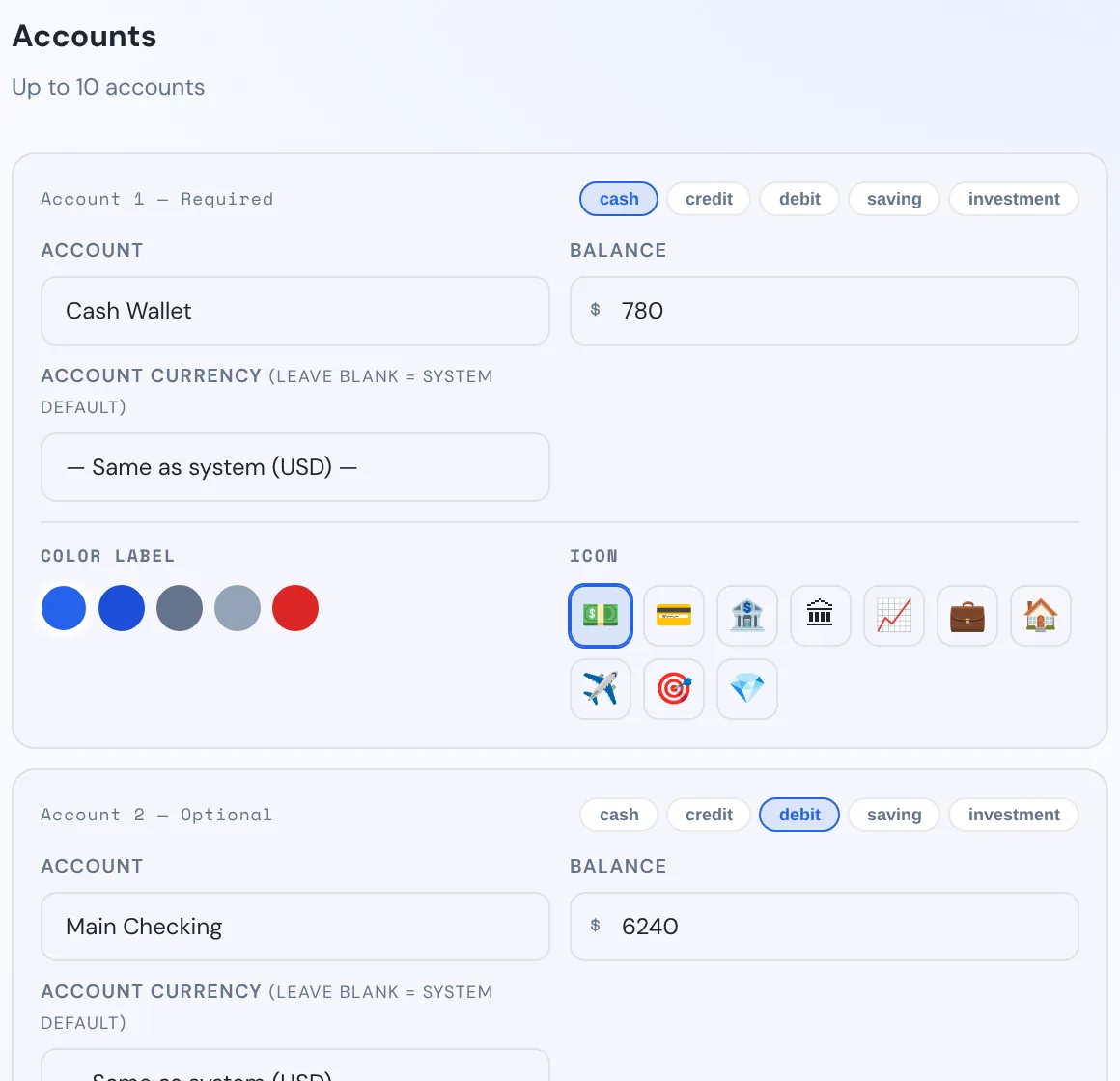
- Go to Setup › Accounts.
- Account 1 is required; accounts 2 to 10 are optional. For each one you use, pick its type (cash, credit, debit, saving or investment), type a name and its current balance.
- If an account is in a different currency from the rest, choose it under Account currency. Leave it as "Same as system" otherwise.
- Pick a colour and an icon if you like, so it's easy to spot.
- Click Save Accounts.
Tip: Start with the accounts you use every week. You can add the others any time, and two accounts can't have the same name.
6. Add expenses, income and transfers
There are two ways to add a transaction. Both update the account balance straight away.
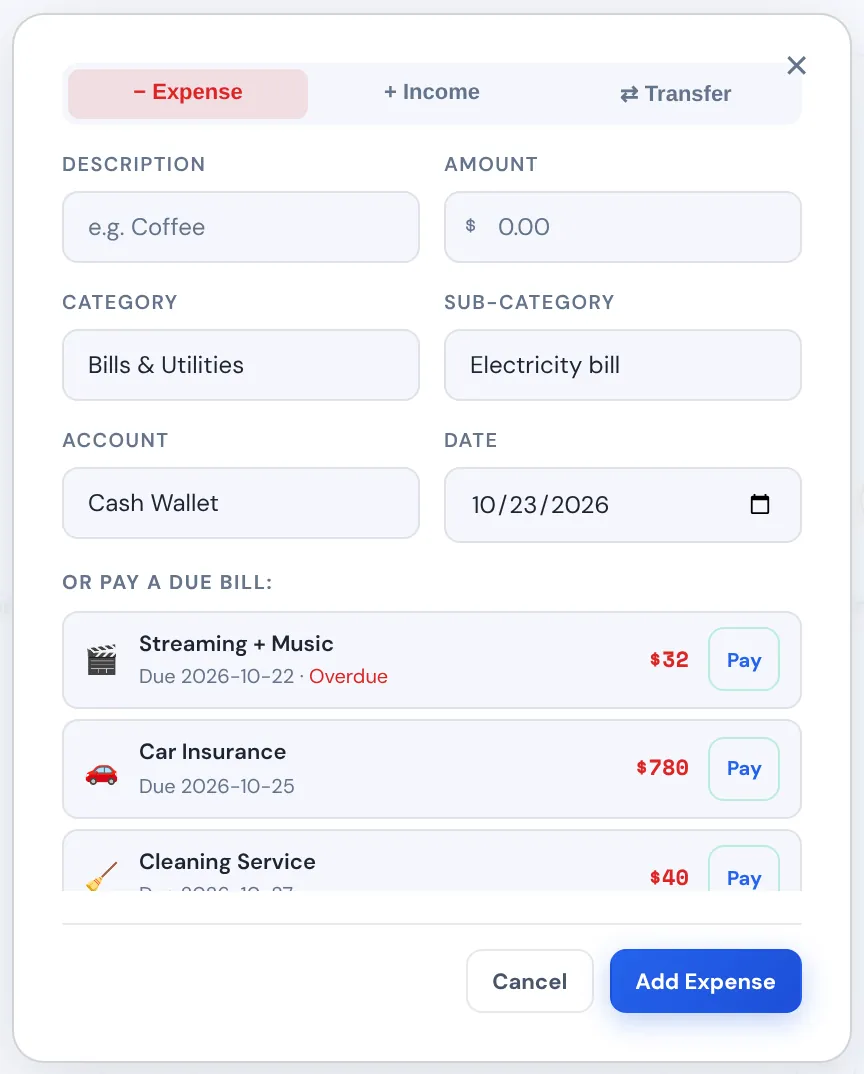
The quick way: + Expense
- Click + Expense at the top.
- Choose Expense, Income or Transfer.
- Type a description (for example "Groceries") and the amount.
- Pick the category and sub-category, the account and the date.
- Click Add Expense (or Add Income).
The full form: Log
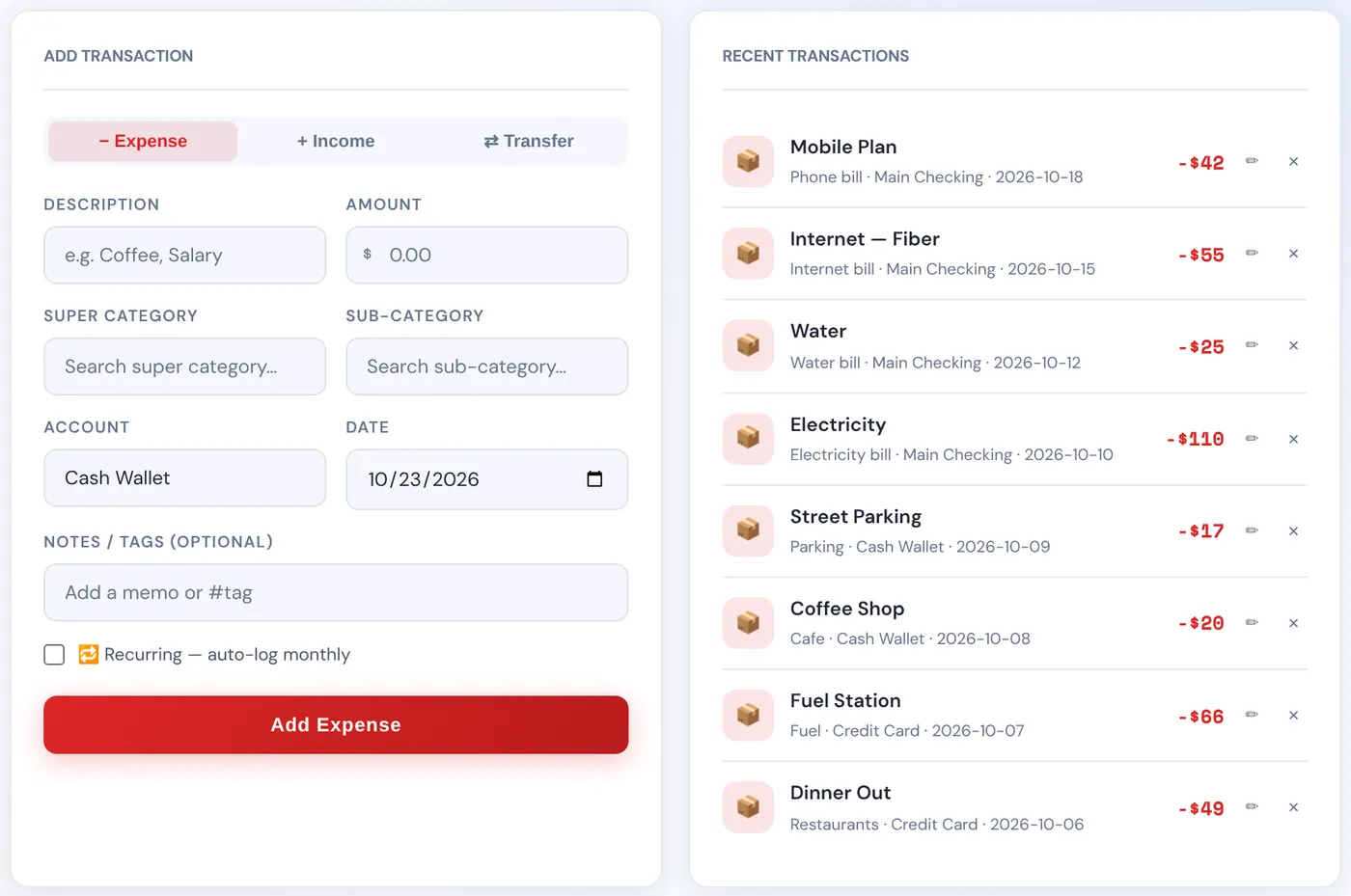
Click Log at the top for the same fields plus two extras:
- Notes / Tags: add a memo, or a tag like #holiday, so you can find it later.
- Recurring, auto-log monthly: tick this for something that repeats every month, like a salary or a gym fee. Each time you open Auric in a new month, it adds a copy on the same day of the month and updates the balance.
The categories have search boxes: start typing ("fuel", "rent") and pick from the list. Your most recent transactions are listed on the right.
Transfers
Use Transfer when money moves between your own accounts, for example from your bank to your savings or when you pay off a credit card. Choose the From and To accounts. A transfer isn't counted as spending or income.
Tip: Only tick Recurring for amounts that really repeat every month. To pay a bill you've set up in Bills, use its Pay button instead (section 10), so the bill is marked as paid too.
7. Find, edit and delete transactions
The Transactions tab has every transaction you've added.
- Search by description, and sort by time, amount or name.
- Filter by account, category, type (expense, income, transfer) and amount range. Reset Filter clears them.
- Choose the period at the top (all time, this month, last month and more), and use ‹ and › to step through periods.
- Tick transactions, or Select all, to Edit, Export or Delete several at once.
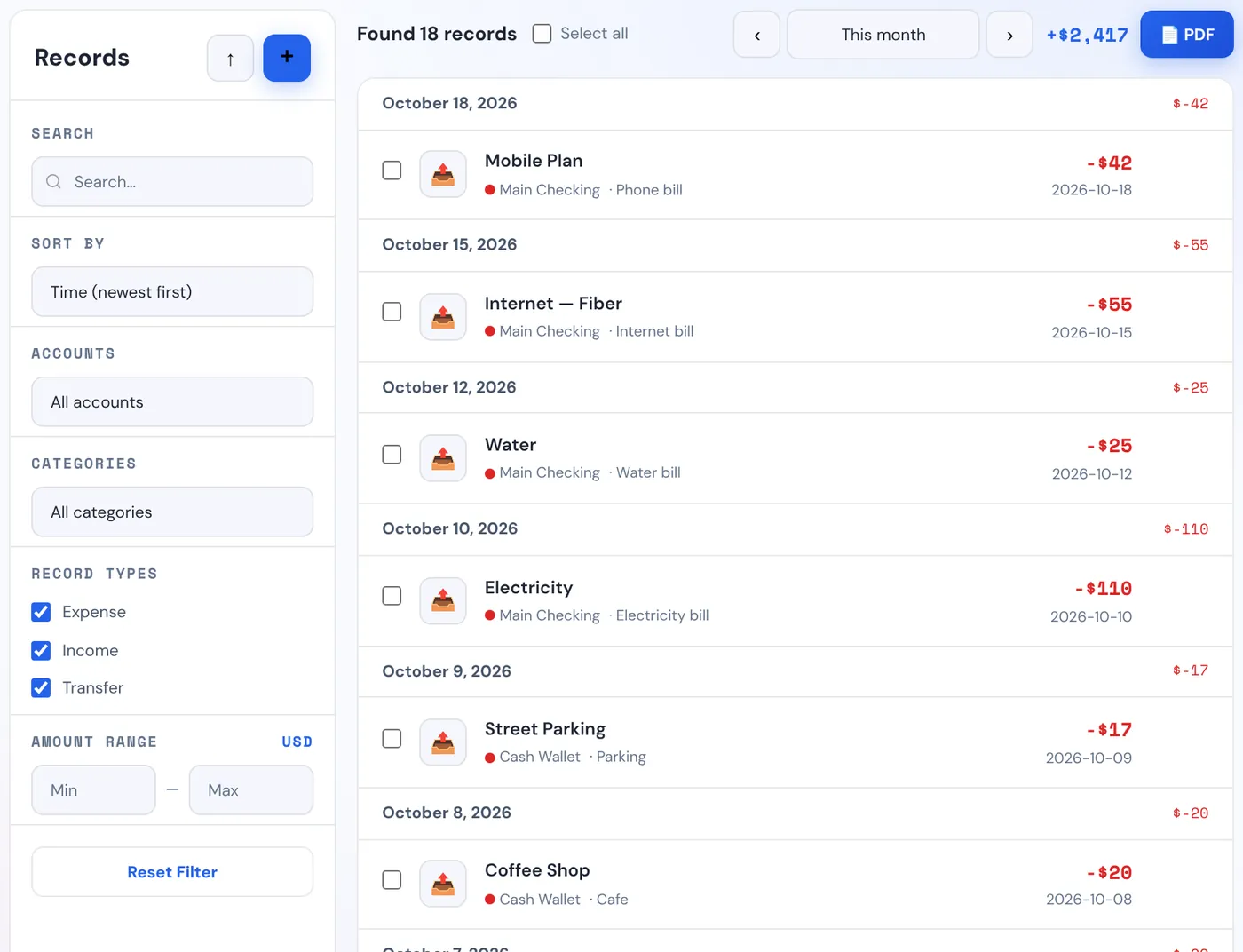
To change one transaction, click its ✏ (on the Transactions or Log tab), make your changes and click Save Changes. To remove it, click × and confirm. Deleting a transaction also reverses its effect on the account balance.
8. Categories
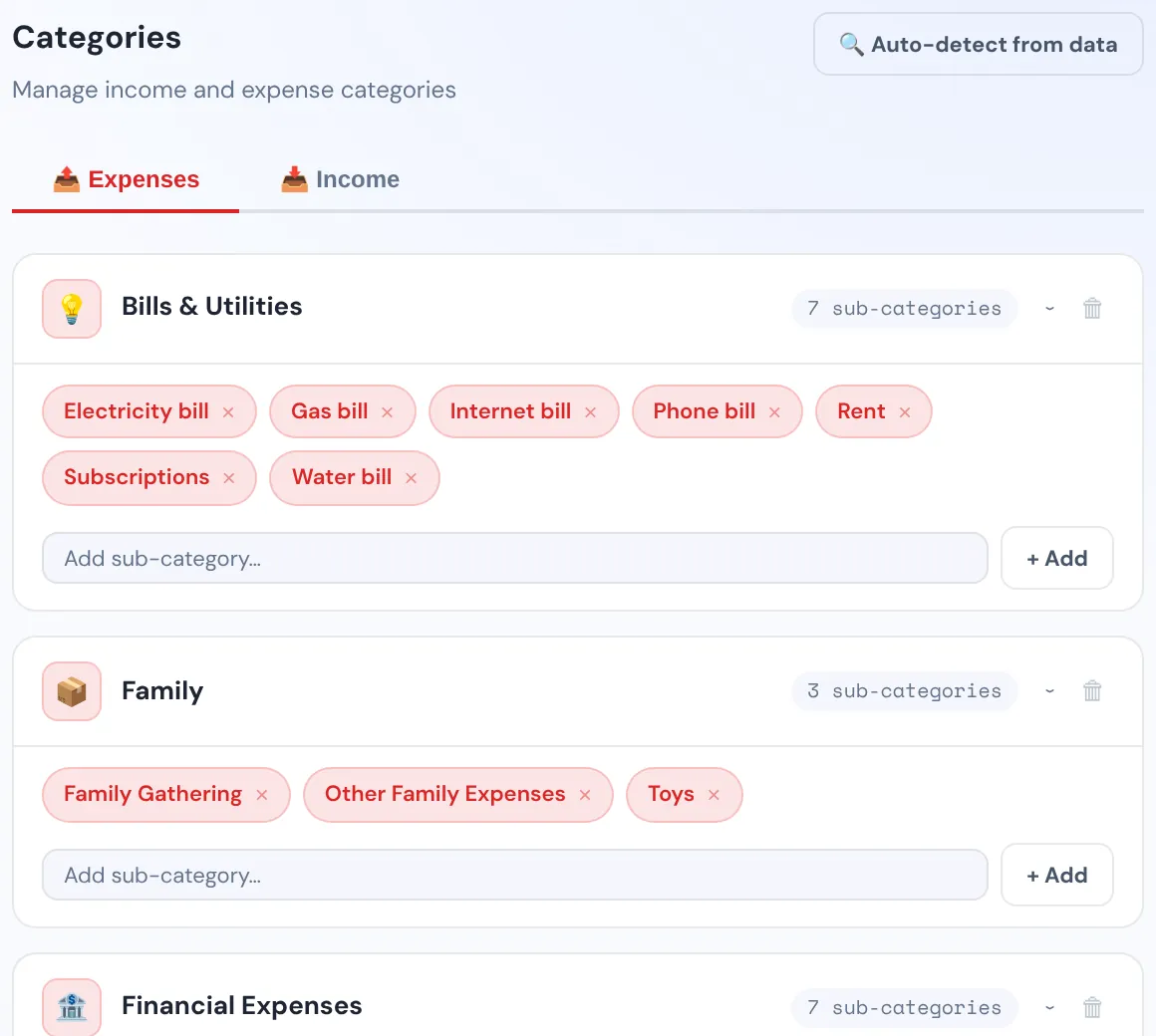
Auric comes with ready-made categories in groups, for example Food & Drinks with Groceries, Restaurants and Cafe. You can change them all in Setup › Categories.
- Switch between Expenses and Income at the top.
- Click a group to open it. Type a name in its box and click + Add to add a sub-category, or click × next to one to remove it.
- Add a new group with the box at the bottom and + Add Group. The bin icon removes a whole group.
- Auto-detect from data adds categories it finds in your transactions, for example after an import.
9. Budgets and envelopes
Monthly budgets
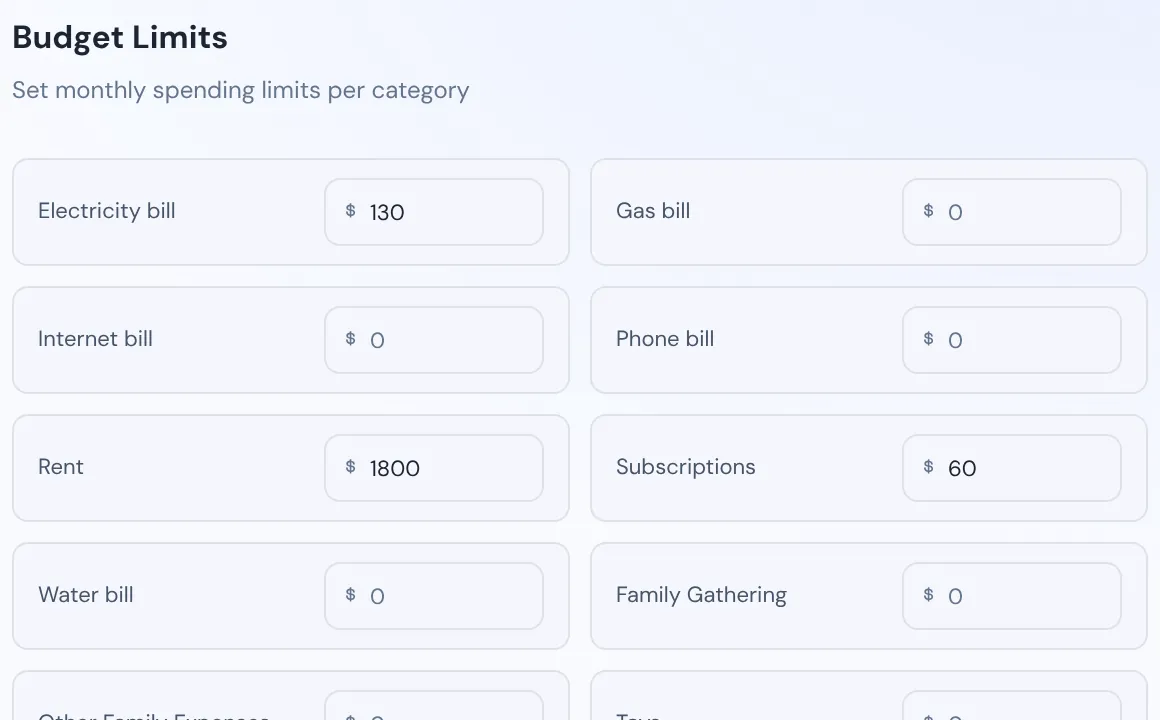
In Setup › Budgets, type a monthly limit next to any sub-category and click Save Budgets. Leave the others at 0. The Savings Tips tab then warns you when you're spending faster than your budget allows.
Envelope budgeting
Envelope budgeting means giving every amount a job at the start of the month. On the Goals tab, switch on Envelope Budgeting and type how much you're putting in each category's envelope. Auric shows how much you've spent from each one and how much is left this month.
10. Bills and subscriptions
Add each bill once and Auric reminds you when it's due: rent, utilities, phone, insurance, streaming and so on.
Add a bill
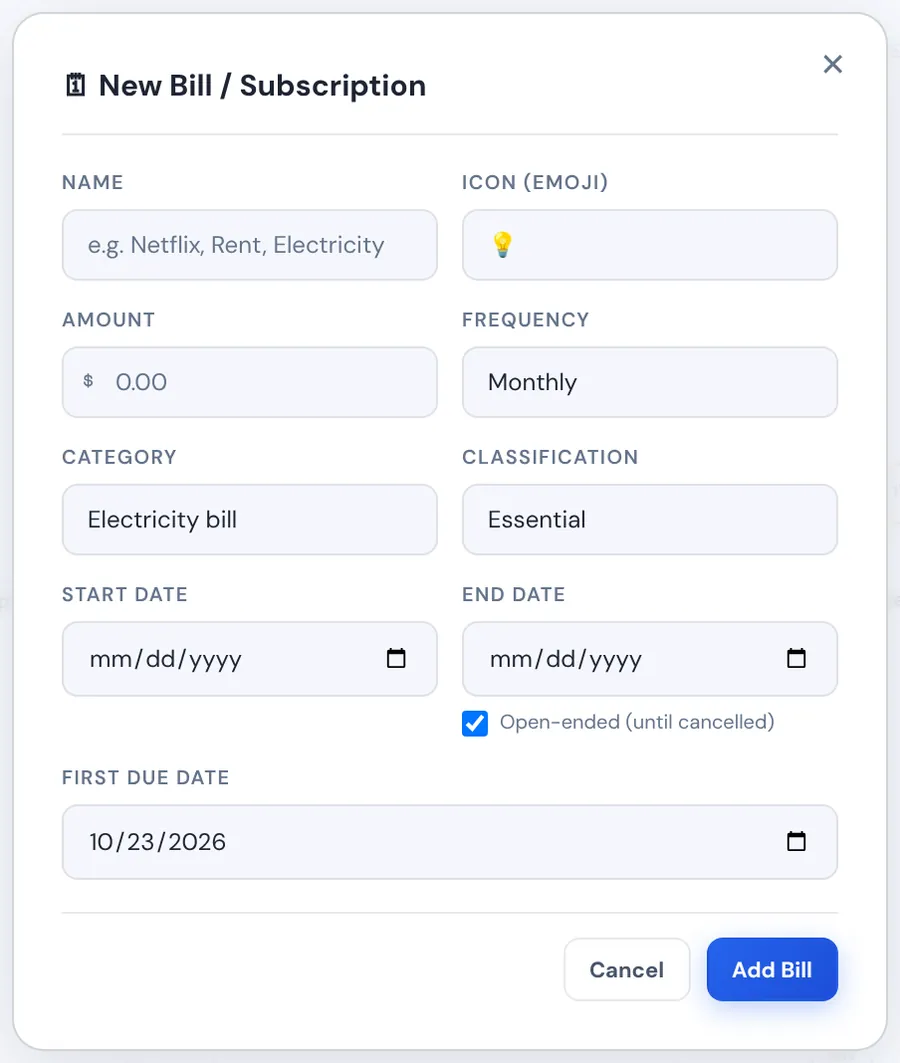
- On the Bills tab, click + New Bill.
- Type the name and amount, and choose an icon if you like.
- Choose how often it's due: Monthly, Weekly, Yearly or One-time.
- Pick its category and its class: Essential, Urgent, Subscription or Luxury.
- Set the start date and the first due date. Leave Open-ended ticked if it continues until you cancel, or set an end date.
- Click Add Bill.
Pay a bill
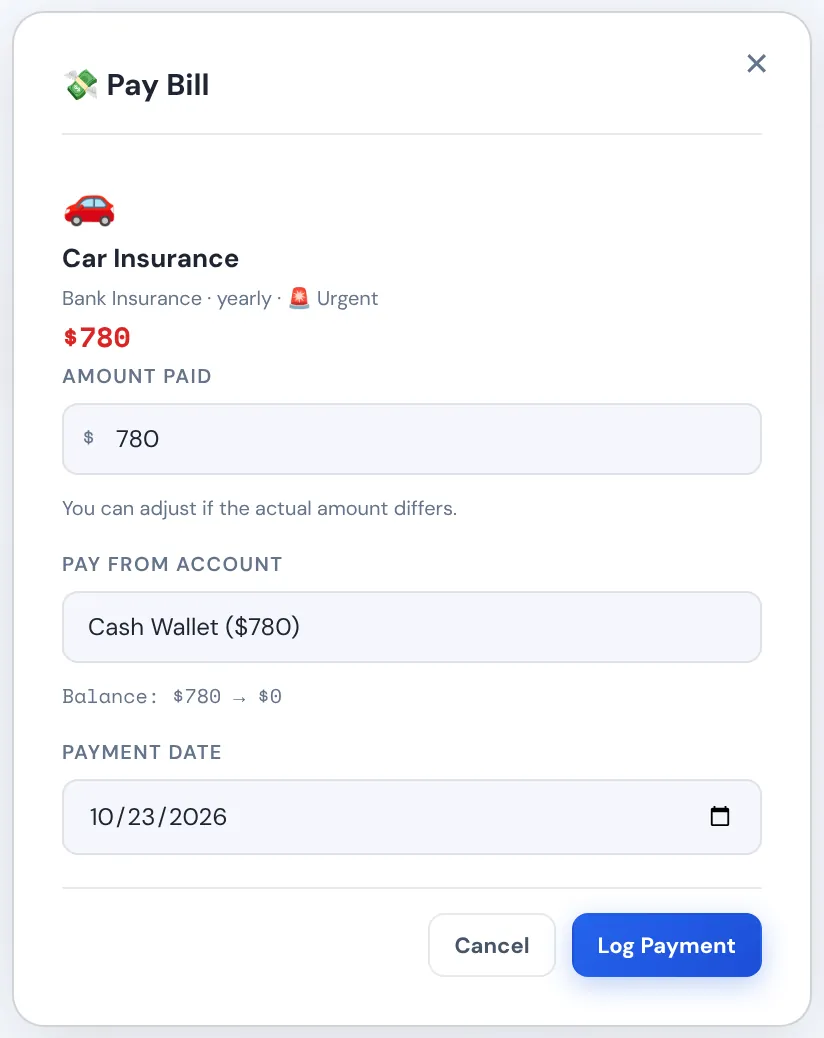
- Click Pay next to the bill (on the Bills tab, or in the + Expense window).
- Check the amount. Change it if the real bill was different this time.
- Choose the account you paid from and the date, then click Log Payment.
Auric records the payment as an expense, takes it from that account and marks the bill Paid for the month.
The payment schedule
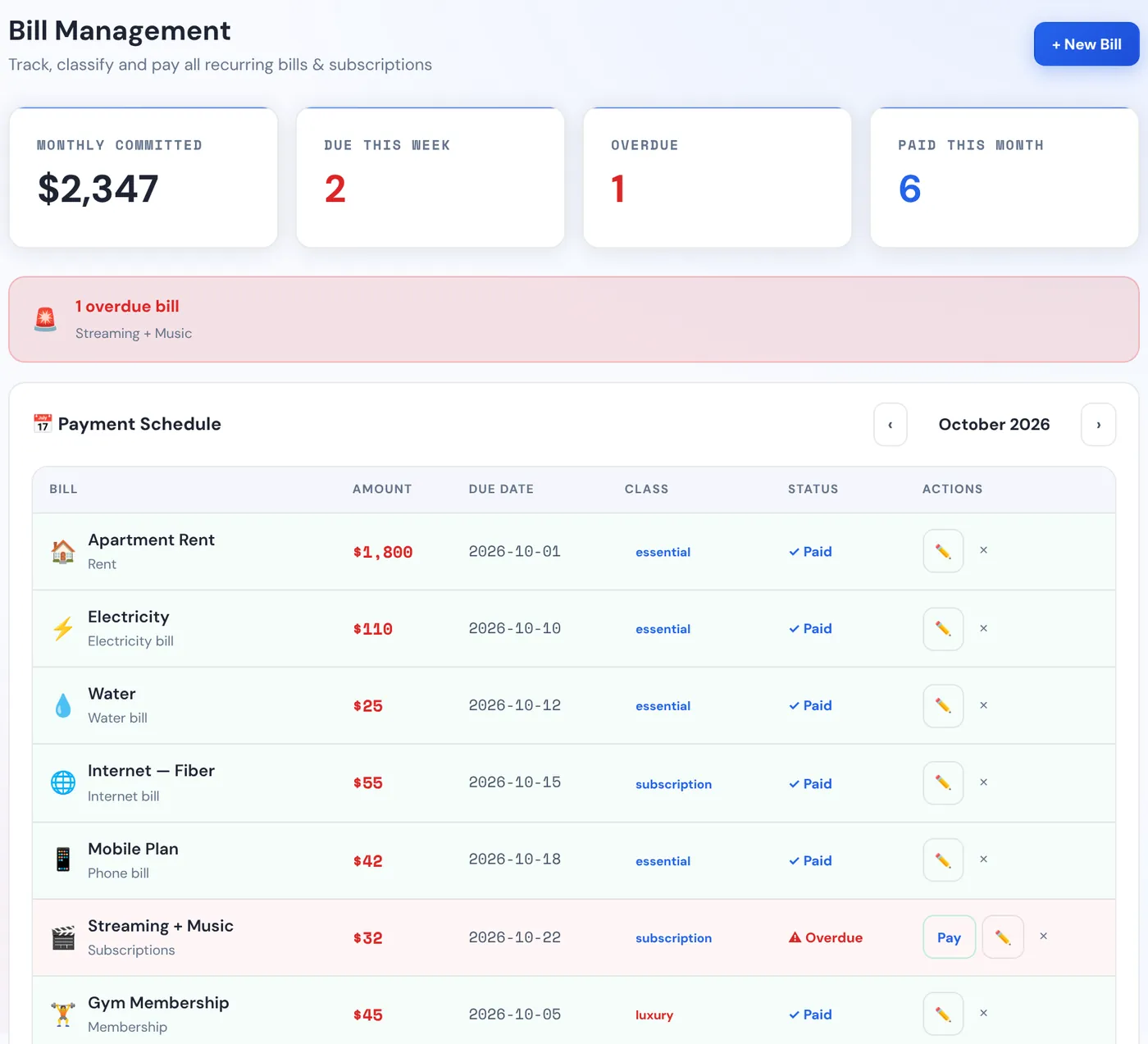
The Bills tab shows this month's schedule with each bill's status: Paid, Due soon, Overdue or upcoming. Use ‹ and › to see other months. The cards at the top show what you've committed per month, what's due this week, what's overdue and what's been paid this month. Click ✏ to change a bill and × to delete it.
11. Savings goals
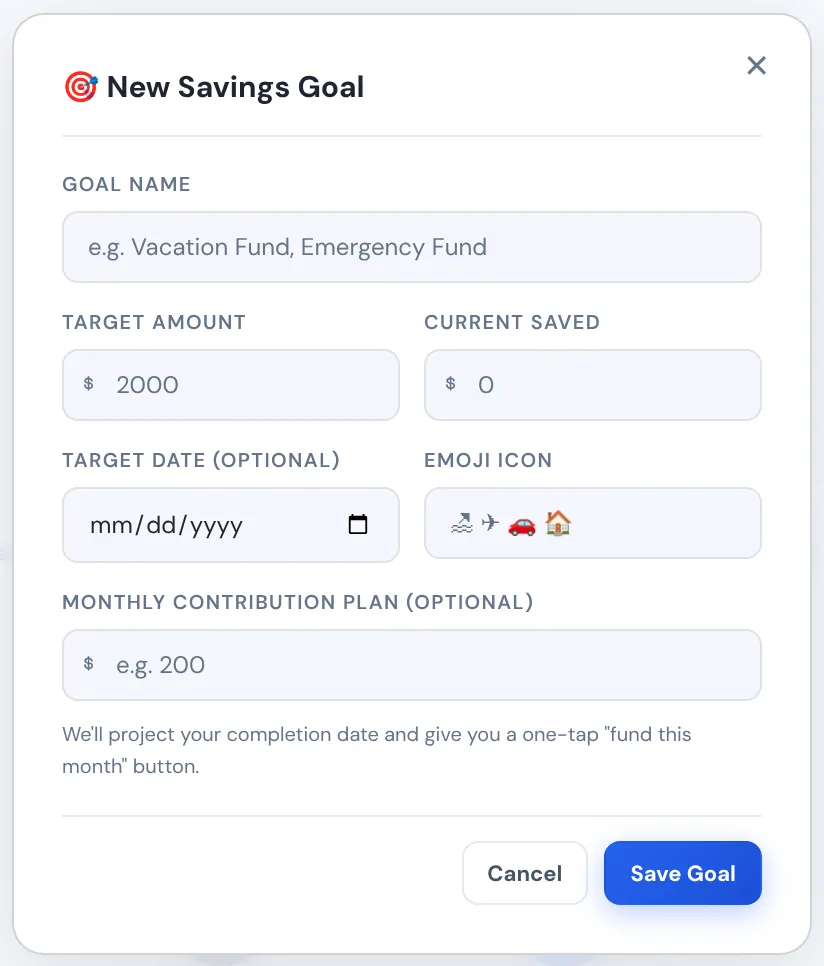
- On the Goals tab, click + New Goal.
- Type the goal's name, the target amount and anything you've already saved towards it.
- Add a target date and an emoji if you like.
- Optionally, type a monthly contribution. Auric then works out when you'll reach the goal.
- Click Save Goal.
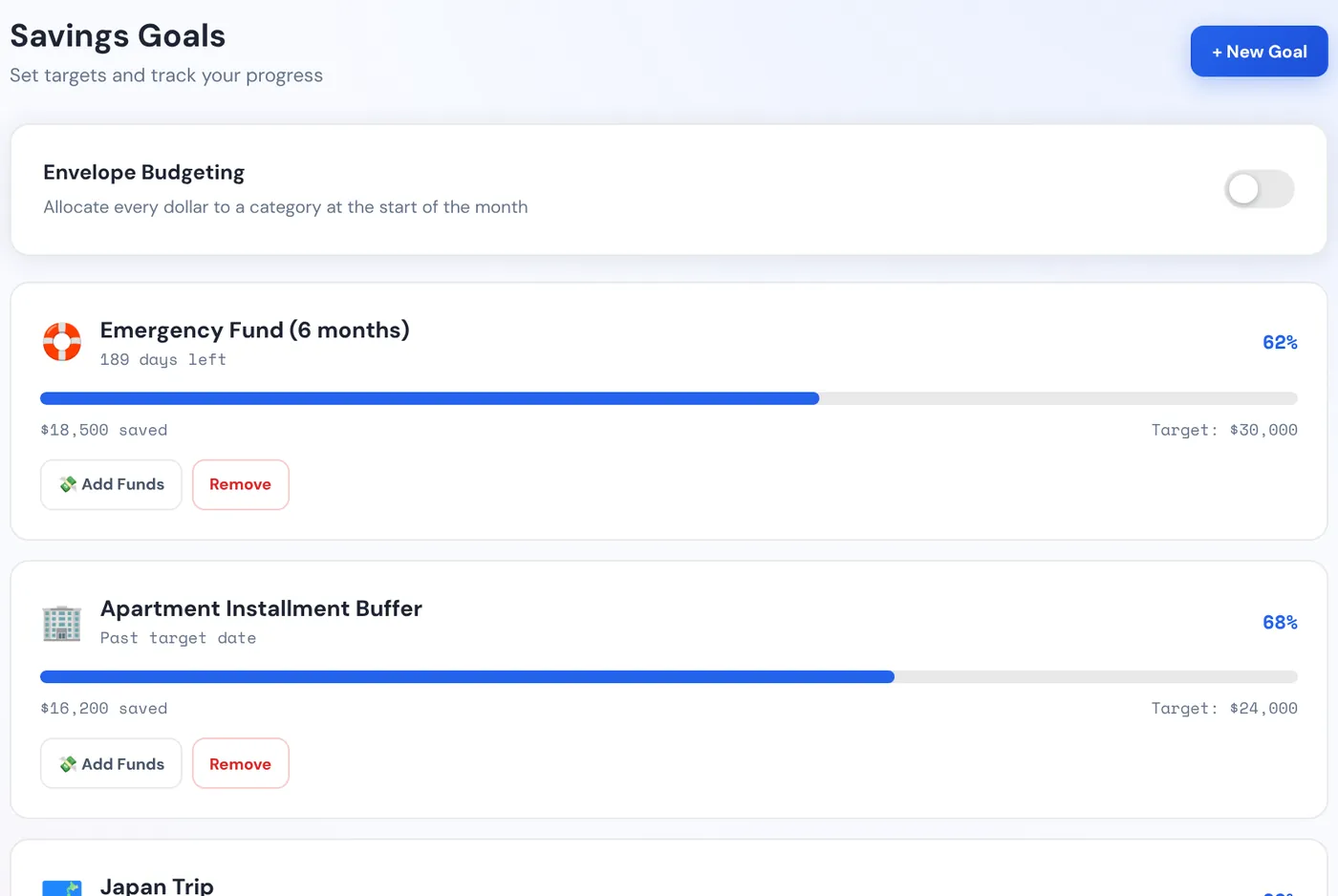
To put money towards a goal, click Add Funds on it, type the amount, choose the account it comes from and click Transfer Funds. The amount is taken from that account and added to the goal. Remove deletes a goal.
12. Read your dashboard
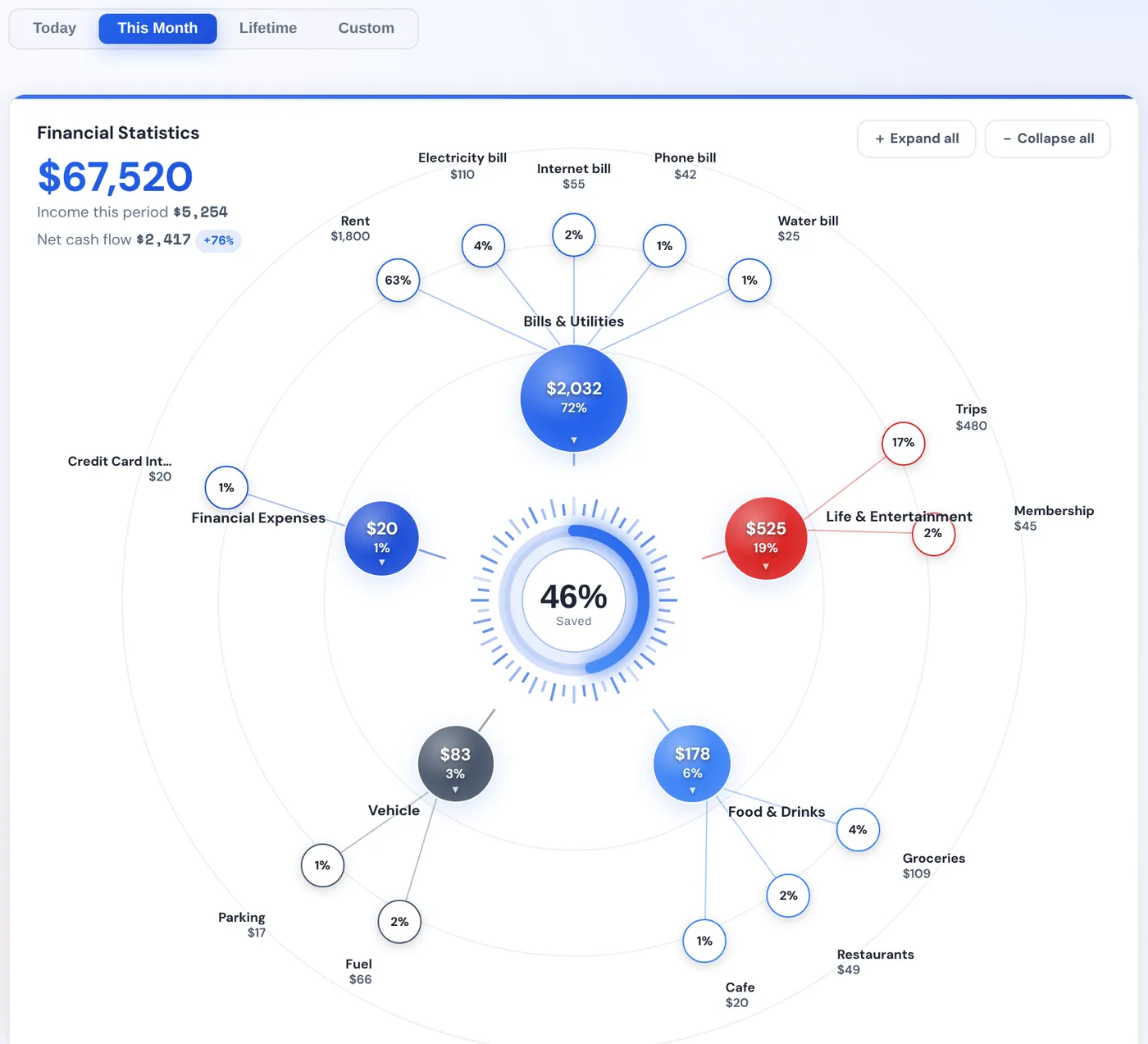
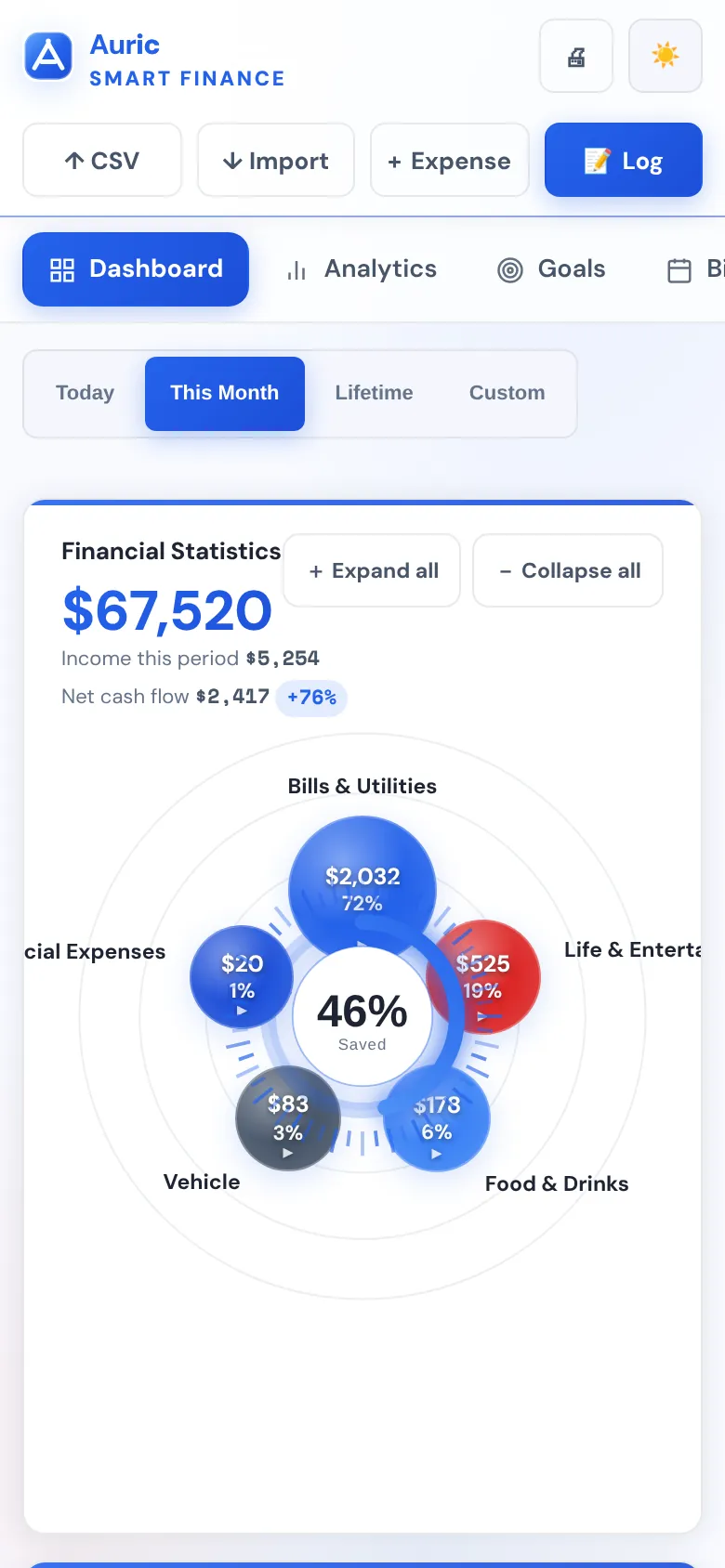
Choose the period at the top: Today, This Month, Lifetime or Custom (pick your own start and end dates).
- Financial Statistics: the big number is the total across your accounts. Underneath are this period's income and net cash flow (income minus spending).
- The bubble chart shows where your money went, group by group, with each group's share of your spending. Click a bubble to open its sub-categories, or use Expand all and Collapse all.
- Saved in the middle is the share of this period's income you kept.
- Emergency Fund shows how many months your savings would cover your usual spending.
- 30-Day Cash Forecast estimates your balance in 30 days from the payments already scheduled.
- Balance Trend and Income vs Expenses show how things have moved over the last months.
13. Analytics and PDF reports
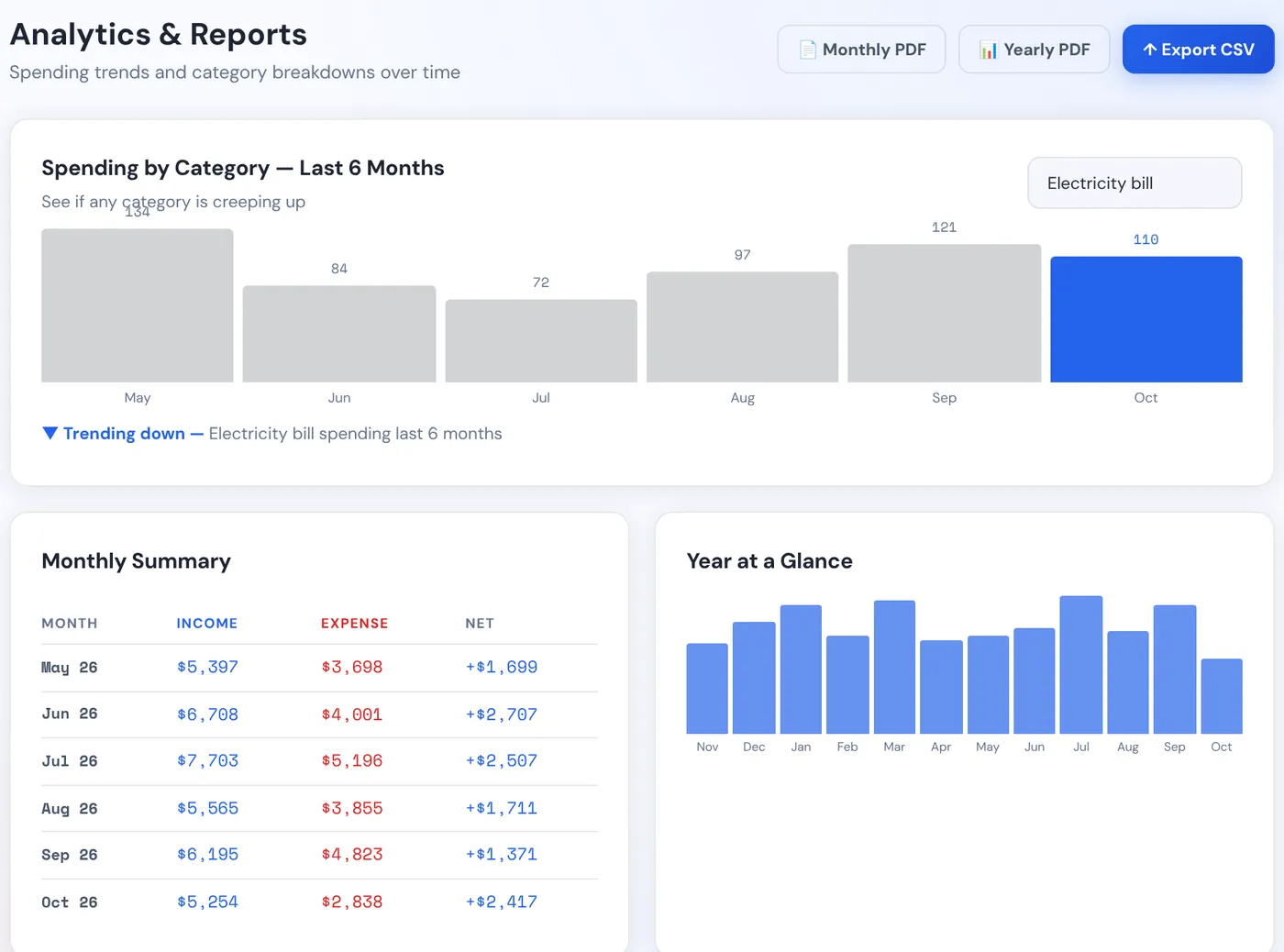
The Analytics tab shows how your spending changes over time:
- Spending by Category, last 6 months: pick a category to see if it's creeping up.
- Monthly Summary: income, expenses and what was left, month by month.
- Year at a Glance: the whole year in one chart.
Monthly PDF and Yearly PDF open a report in a new window that you can print or save as a PDF. Export CSV saves your transactions as a spreadsheet file.
Good to know: If a report doesn't open, your browser has blocked the new window. Allow pop-ups for this file in your browser's address bar and try again.
14. Net worth
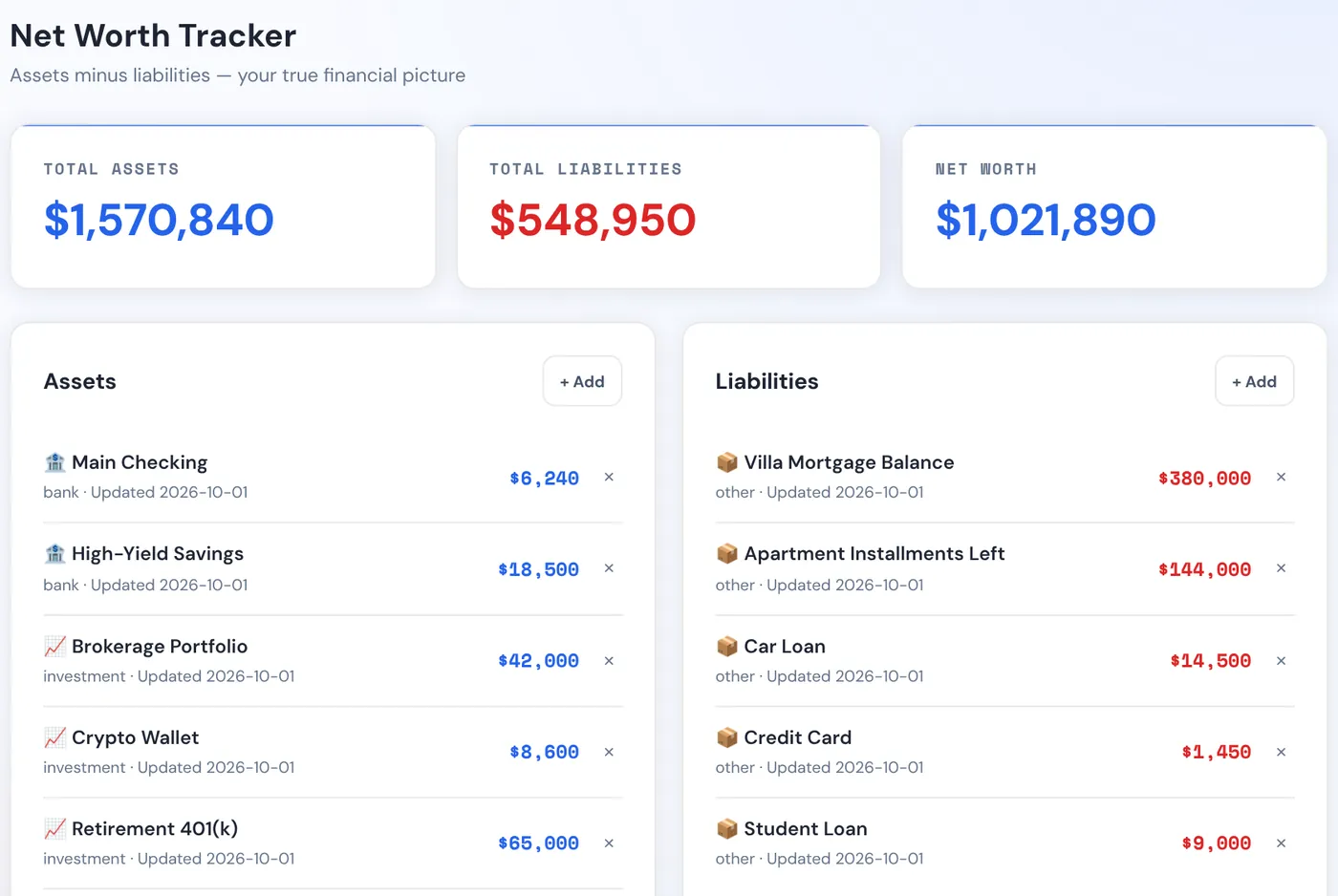
Net worth is everything you own minus everything you owe. On the Net Worth tab:
- Click + Add under Assets for things you own: bank and cash, investments, property, vehicles and other.
- Click + Add under Liabilities for what you owe: loans, a mortgage, card balances.
- Type a name and its value, choose a category and click Add.
The totals update straight away, and Net Worth Over Time records each change so you can watch it grow. These items are separate from your accounts, so add your accounts here too if you want them counted.
Tip: When a value changes (your car is worth less, a loan is smaller), delete the item with × and add it again with the new value. Update them every month or two.
15. Real estate and installments
Use the Real Estate tab for property you're buying in installments, or own already.
Add a property
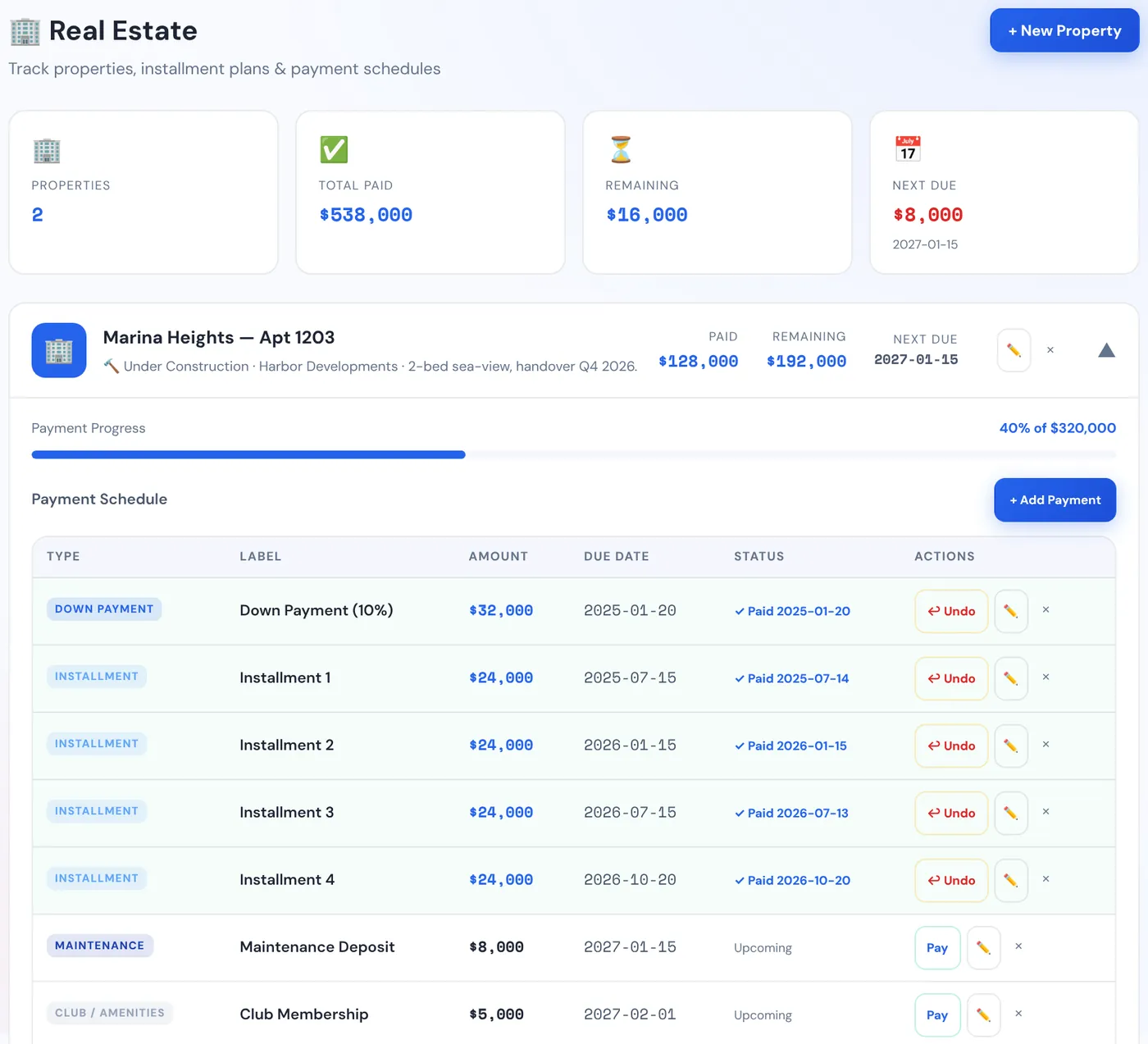
Click + New Property. Type its name, choose its type (apartment, villa, land, commercial, other) and status (under construction, delivered, rented out, sold), and add the total price, current market value, developer or seller, contract date and any notes. Click Save Property.
Add its payments
On the property, click + Add Payment, then either:
- Single Payment: one payment such as a down payment, an installment, maintenance, a club fee or a delivery fee, with its amount and due date. If it's already paid, tick Already Paid and add the date and the account it came from.
- Generate Schedule: for a series of equal installments. Type the amount per installment, how often (quarterly, every 6 months, yearly or monthly), the first due date and how many there are. Check the preview and click Generate All Installments.
Each property shows what's paid, what's left and the next due date, with a progress bar. Click Pay to mark a payment as paid, and ↩ Undo if you clicked it by mistake. Upcoming property payments also appear in the Upcoming dues panel.
16. Financial freedom and debt payoff
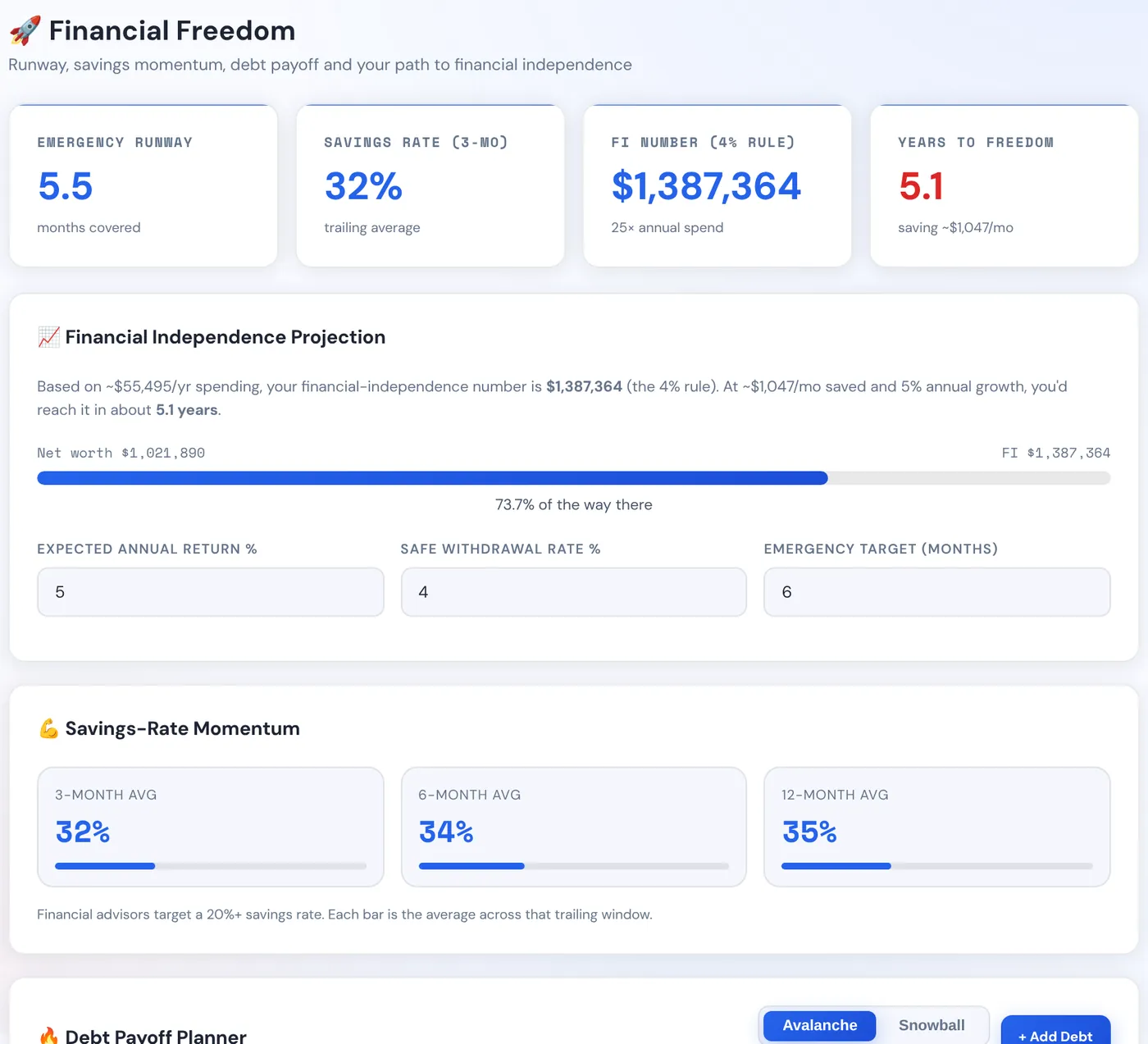
The Freedom tab works from your own numbers:
- Emergency Runway: how many months your savings would last.
- Savings Rate: how much of your income you've kept over the last three months.
- FI Number: the amount that would let you live off your investments, worked out as 25 times your yearly spending (the "4% rule").
- Years to Freedom: how long it would take at your current pace.
Under Financial Independence Projection you can change the expected yearly return, the safe withdrawal rate and how many months your emergency fund should cover. The projection needs your net worth items and a few months of transactions to work.
Debt payoff planner
- Click + Add Debt and type its name, the balance you owe, the interest rate (APR) and the minimum monthly payment. Click Save Debt. Repeat for each debt.
- Choose a plan: Avalanche pays the highest interest rate first and costs the least overall; Snowball pays the smallest balance first, so you see debts disappear sooner.
- Type any extra monthly payment you can add, to see how much sooner you'd be debt-free.
17. Savings tips
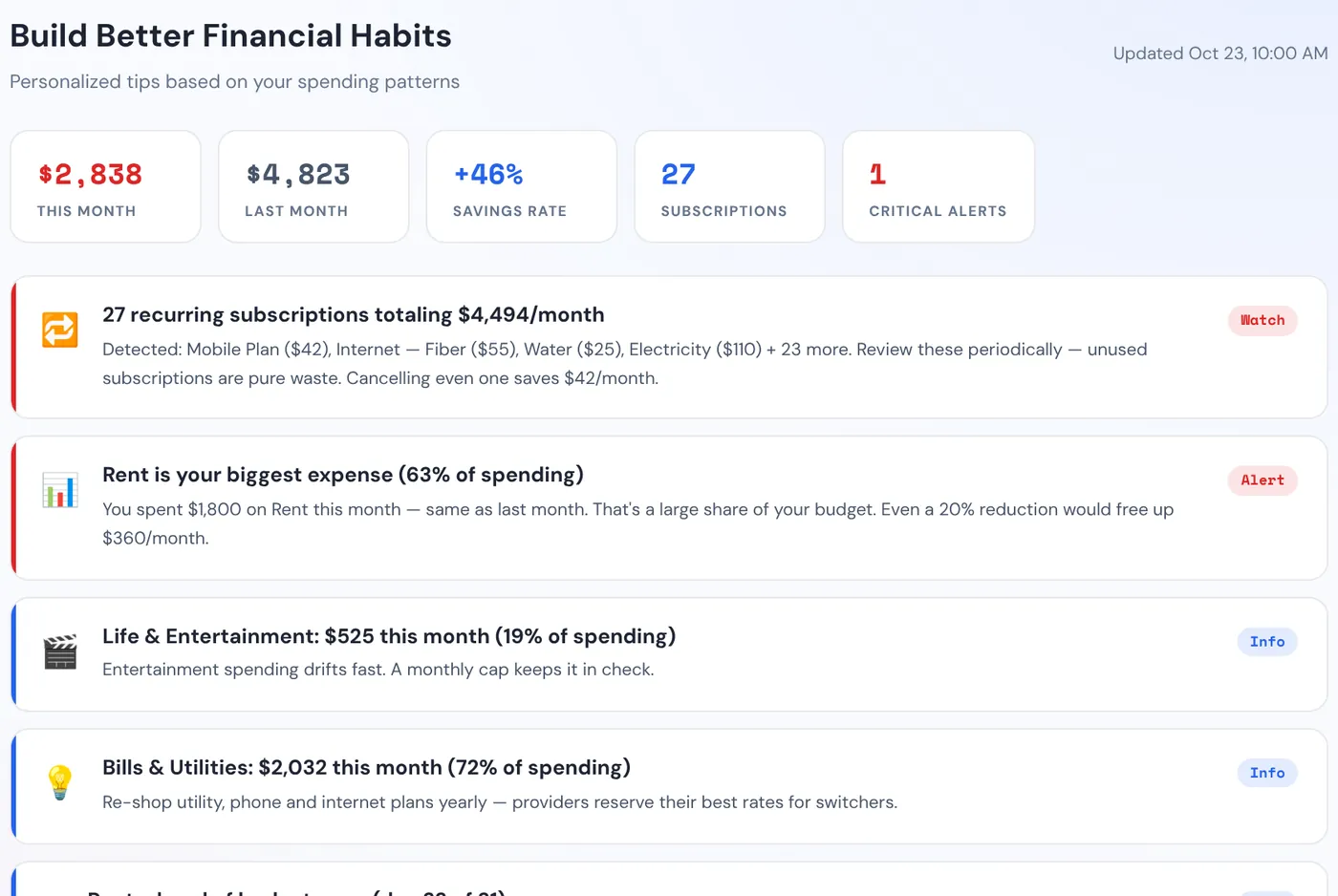
The Savings Tips tab reads your own transactions and points out things worth a look: your biggest expenses, recurring subscriptions, categories running ahead of their budget, and how this month compares with last month. Each tip is marked Alert, Watch, Info or Good. There's nothing to set up: the more you log, the more useful the tips get.
18. Import from a spreadsheet or bank
If you already track money in a spreadsheet, or your bank lets you download transactions, you can bring them into Auric.
- Click ↓ Import at the top.
- Click Download Template. It's a spreadsheet file with the columns Auric expects: ID, Name, Date, Super Category, Sub-Category, Amount, Type, FromAccount, ToAccount, Budget and Notes.
- Copy your transactions into the template in Excel, Numbers or Google Sheets, one per row, and save it as a CSV file.
- Back in Auric, click Choose File and pick it, or paste the CSV text into the box.
- Click Import Transactions.
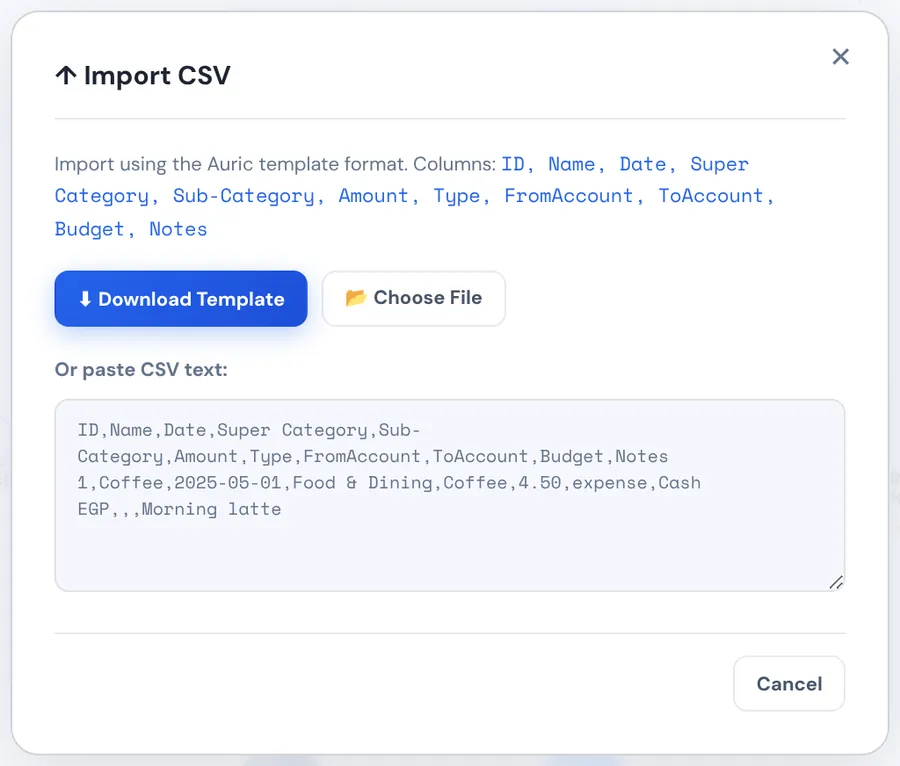
Tip: Back up first (section 19), then try a few rows before importing a whole year. Afterwards, Setup › Categories › Auto-detect from data adds any new categories from your file.
19. Back up and move to a new device
Your data lives only in this browser on this device. Nothing is uploaded anywhere, so the backup is up to you, and it takes ten seconds.
Make a backup
- Go to Setup › Backup.
- Click Export Full Backup (.json). A file is saved to your Downloads folder.
- Keep a copy somewhere safe, for example in your email, Google Drive or on a USB stick.
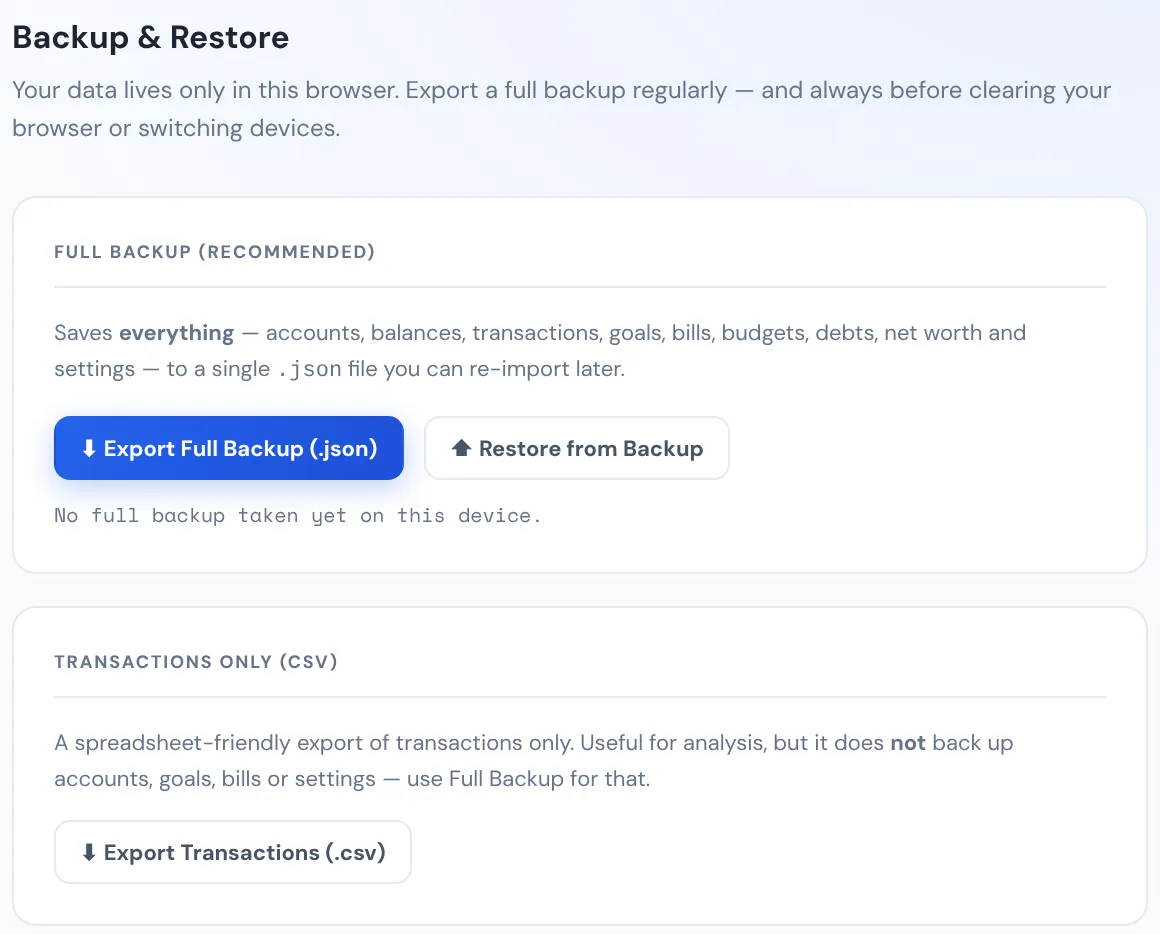
The full backup has everything: accounts, balances, transactions, goals, bills, budgets, debts, net worth and settings. Export Transactions (.csv) is only a spreadsheet of your transactions and can't restore the rest.
Restore, or move to another computer, phone or browser
- On the old device, export a full backup.
- On the new device, open the Auric file, enter your PIN (on a new device it's the starting PIN, 1234) and go to Setup › Backup.
- Click Restore from Backup and pick the backup file. Auric shows how many accounts and transactions it contains. Confirm to restore. From then on, use the PIN you had when you made the backup.
Important: Restoring replaces everything currently in Auric in that browser. Back up weekly, and always before clearing your browser's history or data, or switching devices.
20. Currency, month start and PIN
Everything lives in Setup:
- Currency: your main currency, out of 36. All reports are shown in it. An account in another currency can have its own (see section 5).
- Preferences: the first day of the month. If you're paid on the 25th, for example, choose the 25th so "This Month" runs from payday to payday. Click Save.
- PIN: change your PIN (see section 2). Reset All Data in the danger zone deletes everything, so make a backup first.
21. On your phone
On a phone, Auric switches to a one-column layout with bigger buttons. The tabs sit along the top and scroll sideways, and the main buttons (+ Expense, Log, CSV and Import) are right under the title.
Remember that the phone keeps its own copy of your data, separate from your computer. To move between them, use a backup (section 19).
22. If something goes wrong
- My data has disappeared.
- Check that you opened the same file in the same browser on the same device, and not in a private or incognito window. Clearing your browser's history or site data also wipes Auric's data. If it's gone, restore your latest backup (section 19).
- I forgot my PIN.
- It can't be recovered. Forgot PIN? Reset all data starts Auric again with the starting PIN 1234, and you can then restore a backup.
- The file won't open on my iPhone or iPad.
- Use the free Microsoft Edge app; Safari and Chrome there can't run it. Here are the steps.
- A report or PDF doesn't open.
- Your browser blocked the new window. Allow pop-ups for this file and try again.
- A balance looks wrong.
- Look for a duplicate or a transaction on the wrong account in Transactions, and fix it with ✏. Deleting a transaction reverses its effect on the balance. You can also correct a balance in Setup › Accounts.
- A recurring transaction keeps coming back.
- New copies are made from the first transaction you ticked Recurring on. Delete that first one to stop them (add it again without Recurring if you want to keep the record). Copies already added stay until you delete them.